
DDx makes it easy to assign cases to your students exactly how you need to. The following instructions will walk you through how to assign cases to:
an entire course
specific or groups of learners
Cases can be assigned one at a time or in bulk. Once created, assignments remain fully editable up until a learner starts the assignment. After that point, only the due date can be adjusted, so it's worth double-checking details like case selection and student groupings before your students begin.
Planning ahead for a future semester?
If you're setting up assignments before a semester officially starts, we recommend selecting "Assign to course(s)" during assignment setup . This lets you build out your assignments in advance, and students will be automatically added as they enroll in your course — no need to go back and manually add them later. Once learners start enrolling in your course, you'll be able to assign cases to specific learners or groups.
Let's get started!
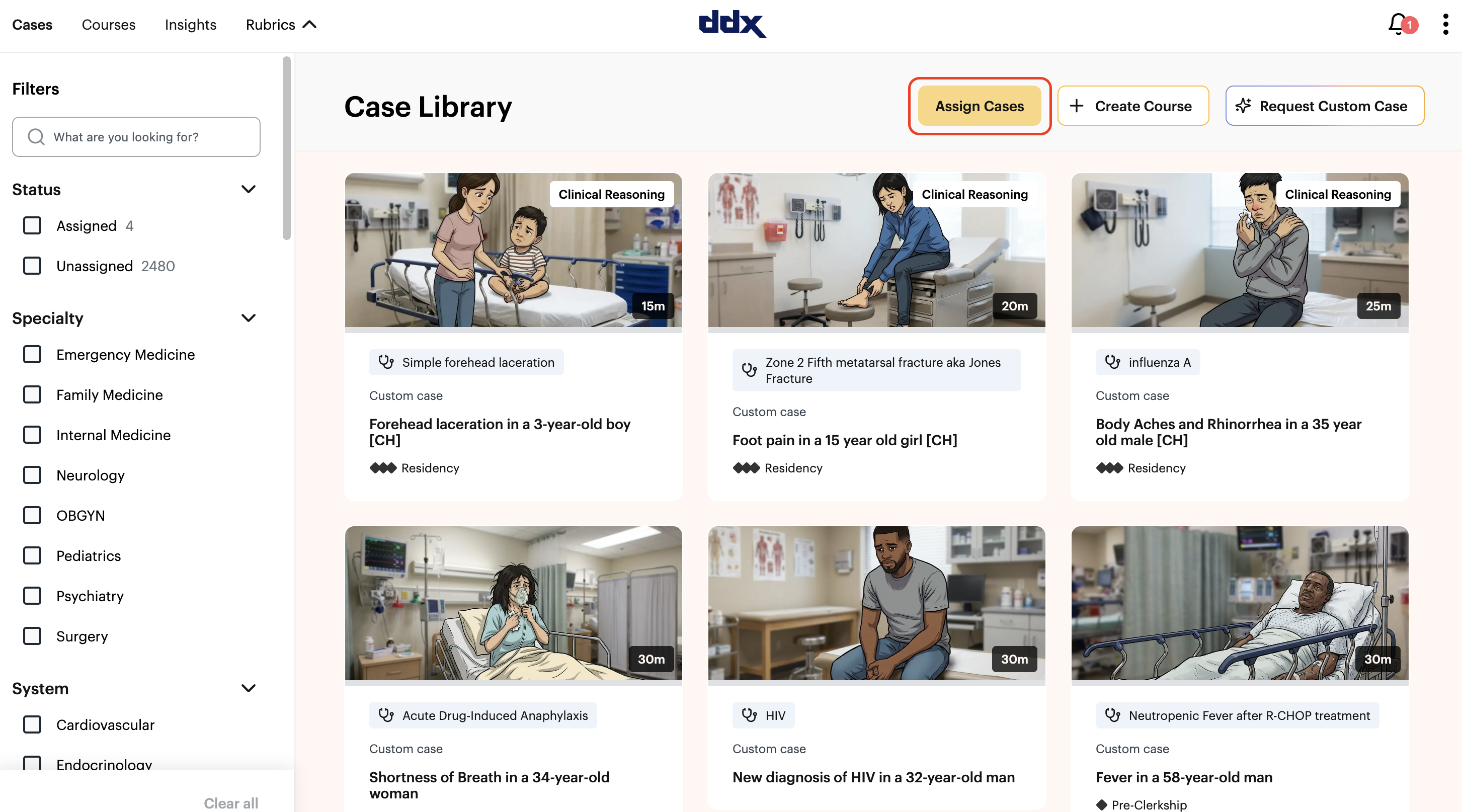
1. Click “Assign Cases” in the upper right corner.
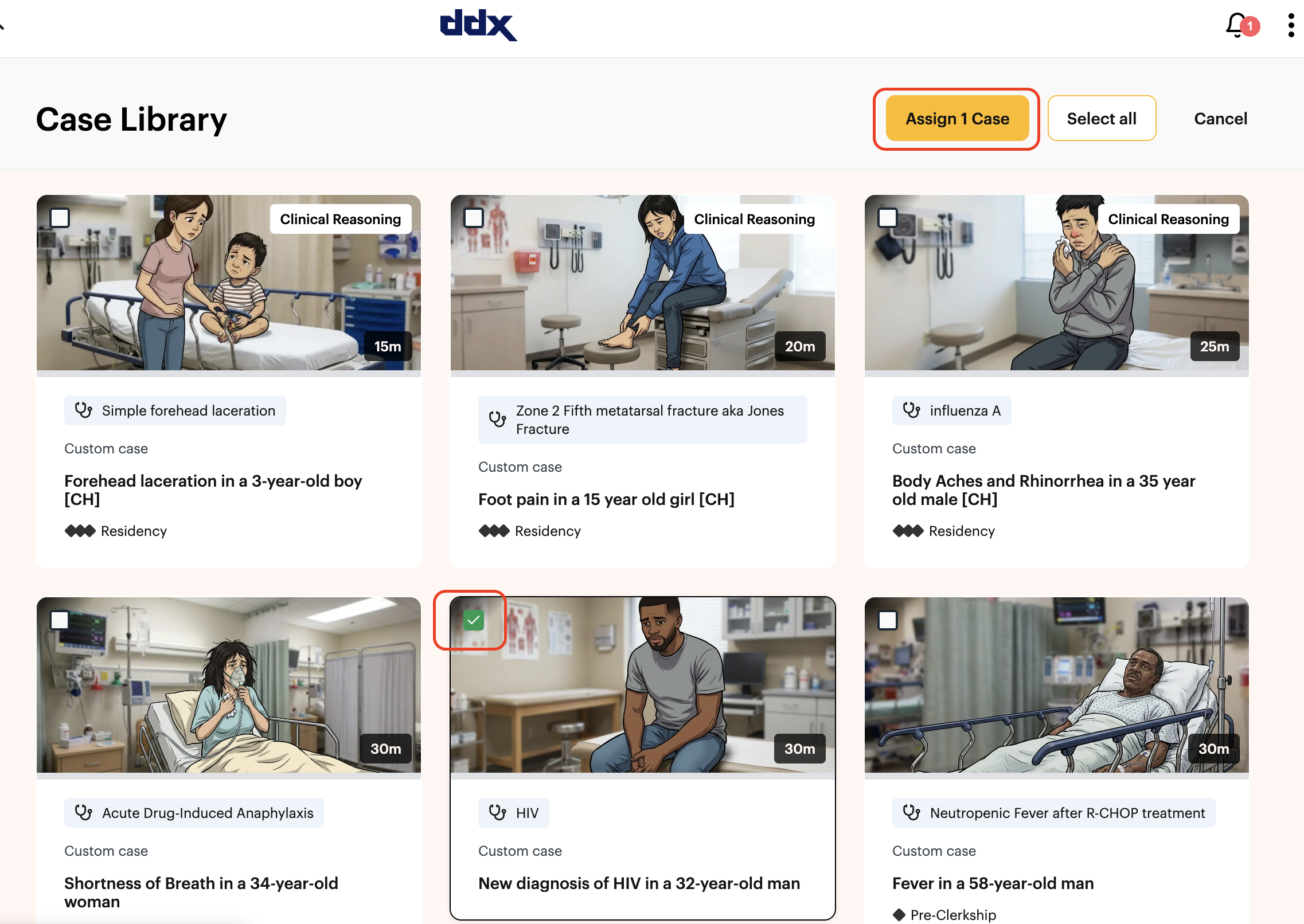
2. Select which case(s) you want to assign and click "assign case" in the top right corner
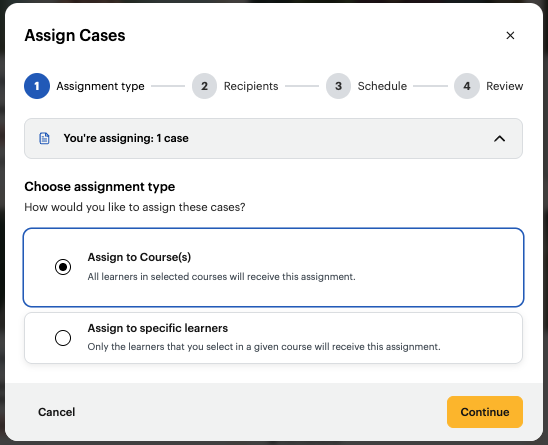
3A. ASSIGNING TO AN ENTIRE COURSE
Select "Assign to Coure(s)."
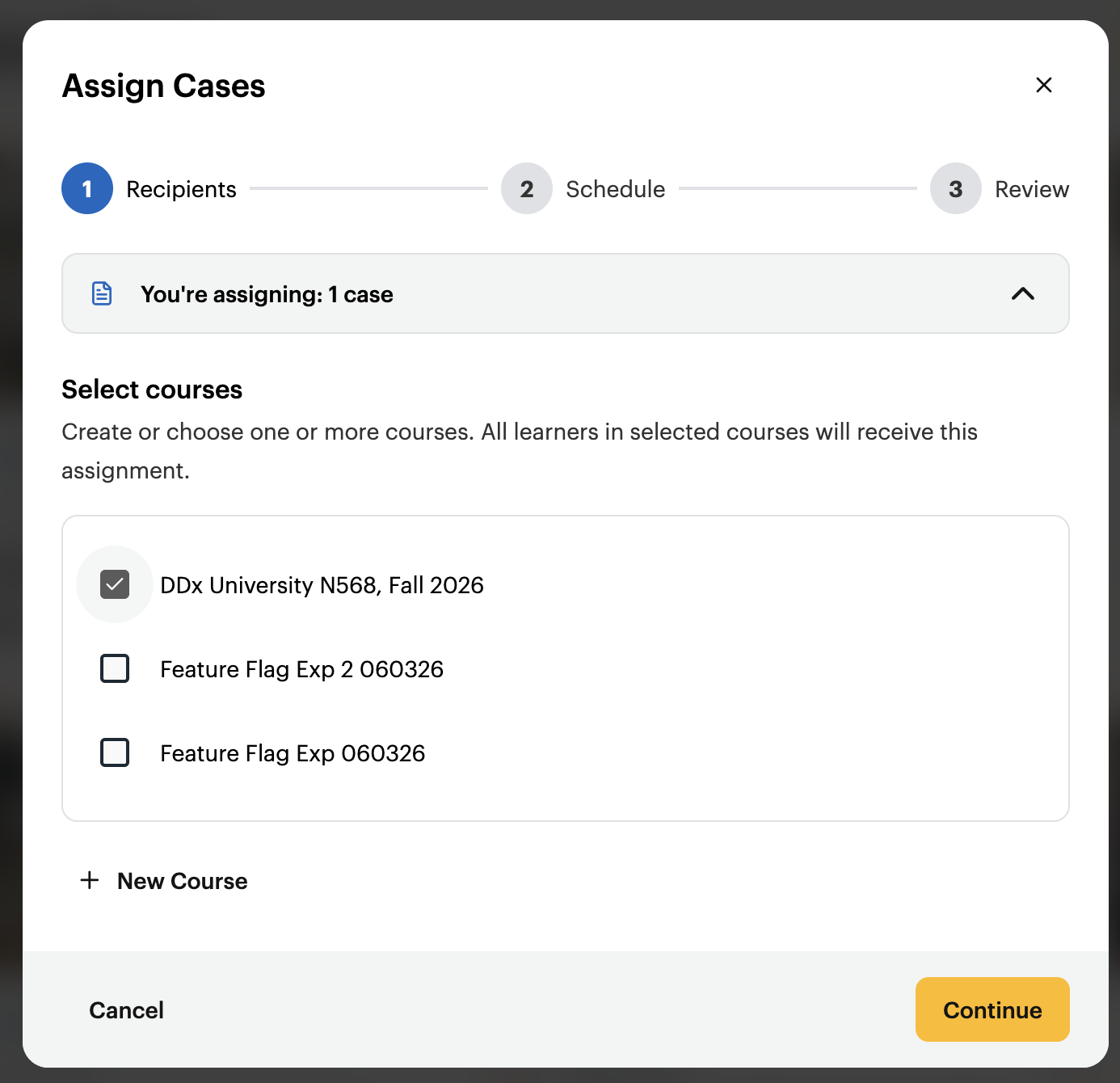
Select which course(s) you would like to assign the case to.
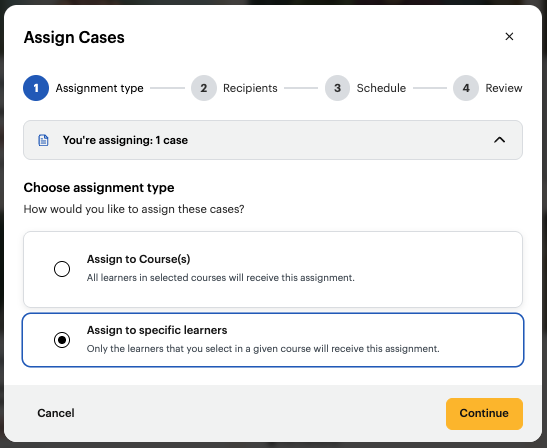
3B. ASSIGNING TO SPECIFIC LEARNER(S)
Select "Assign to specific learners."
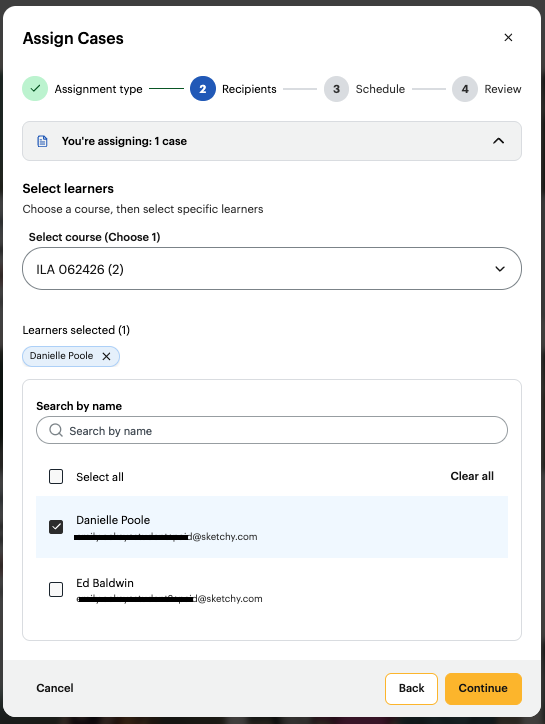
Select which course you would like to select learners from and choose your assignees.
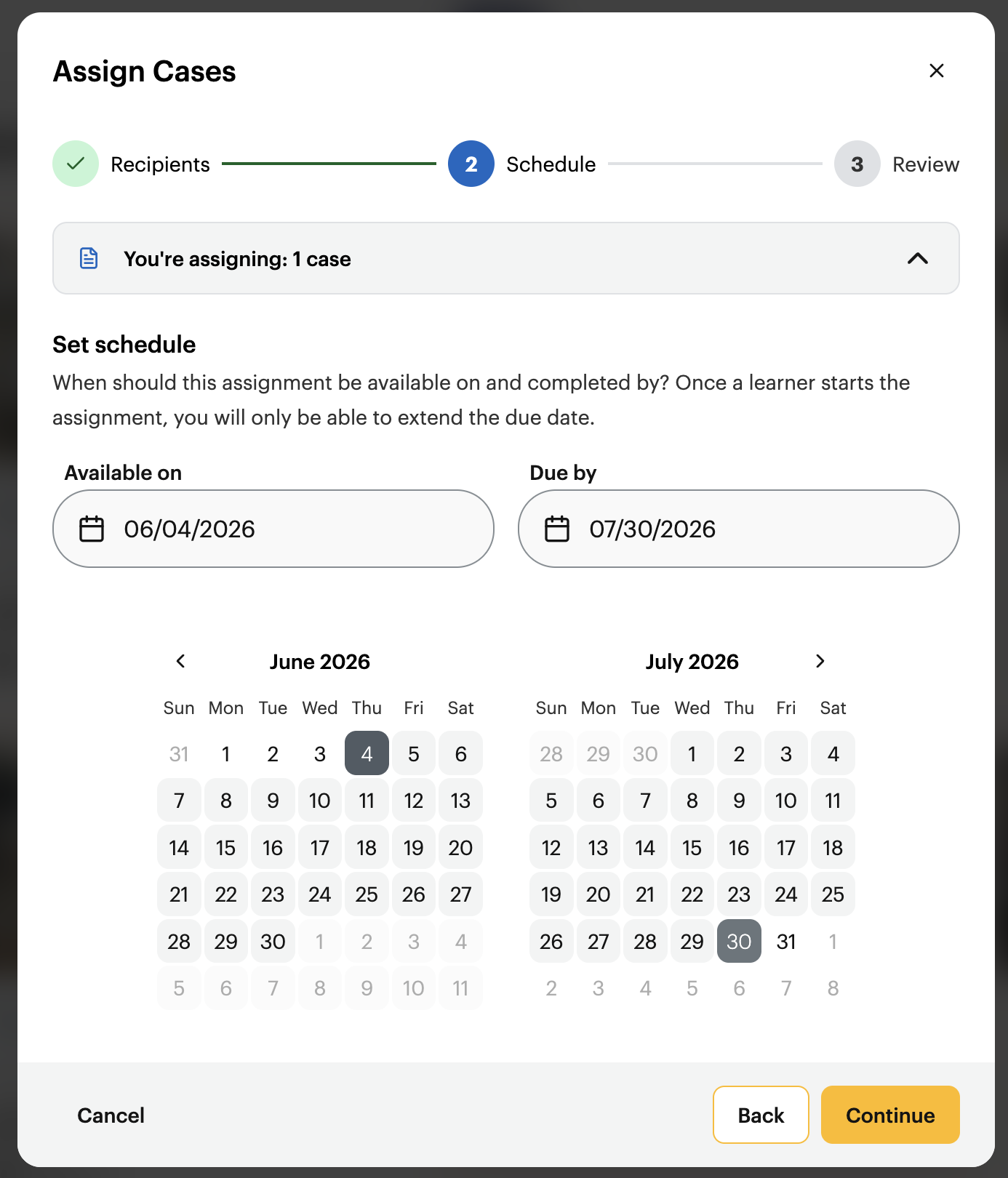
4. Select the open/close dates for the case assignment and click “Continue."
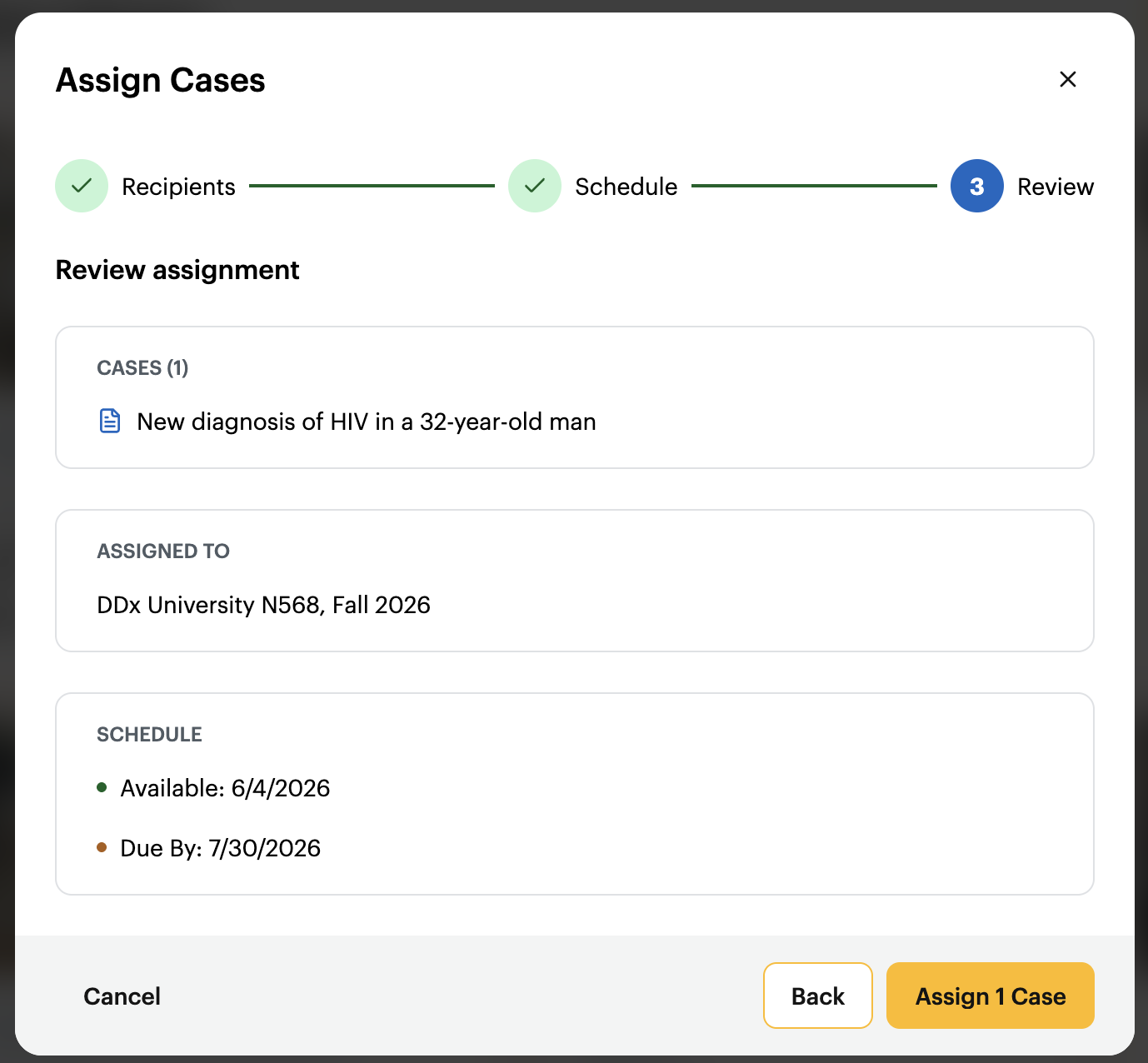
5. Review your assignment details and confirm that everything looks correct. Click "Assign Case."
Click the "Courses" tab on the top left of DDx to view your course's assignments. Reference the "Assigned to" column to see which assignments were assigned to the entire course vs. specific learner(s).
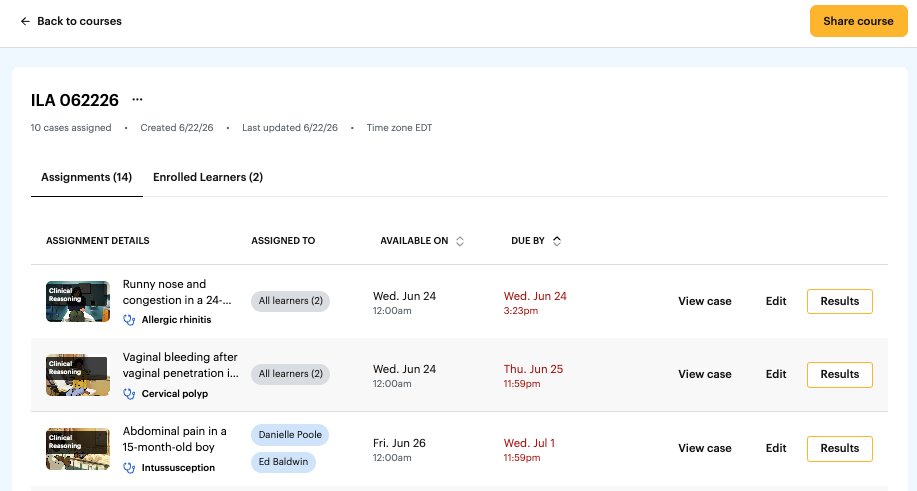
Learner Assignment View
Once a learner has enrolled in your course via the course invite link that you shared with them, they'll be able to view all of their assigned cases upon logging in. They'll also be able to track which ones have been completed, started, and not started.
.png)