
Once created, assignments remain fully editable up until a learner starts the assignment. After that point, only the due date can be adjusted, so it's worth double-checking details like case selection and student groupings before your students begin.
Editing an assignment
Click "Edit" next to the assignment that you wish to edit.
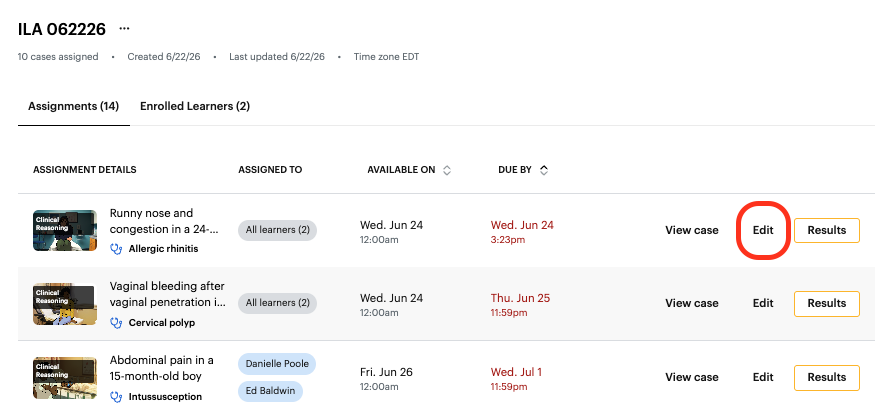
If the case was assigned to specific learners (as opposed to the entire class), you'll be given the option to add or remove learners from the assignment. Note, if you de-select and remove a learner who has started the assignment, they will no longer be able to access the case and neither of you will be able to view their performance in the standard performance dashboards. You as the instructor WILL still be able to see their data under the "Insights" tab in the top left of DDx.
For course and learner assignments, you can then edit the dates.
If no one has started the assignment yet, you can modify the dates however you want.
If a learner has started the assignment, the start date is locked, but you can adjust the due date.
Review your assignment details and click "update assignment" to submit your changes.
Deleting an assignment
NOTE: Deleting an assignment with student data will make it so that those learners can no longer see that assignment. As an instructor, only you will be able to access assignment data under the "Insights" tab in the top left of DDx.
Click "Edit" next to the assignment that you wish to delete.
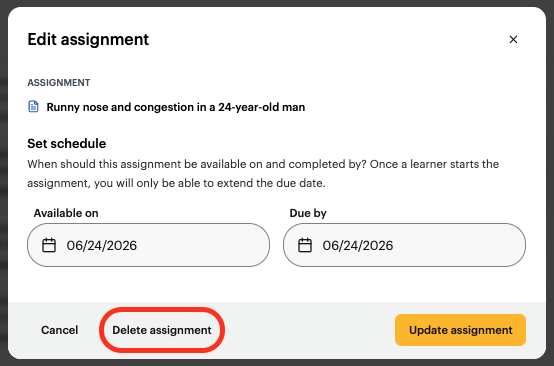
Select "Delete Assignment"
Deleting an course
NOTE: Deleting a course with student data will make it so that those learners can no longer see that course when they log in. As an instructor, only you will be able to access course data under the "Insights" tab in the top left of DDx.
Click the "..." icon next to the course that you wish to delete.
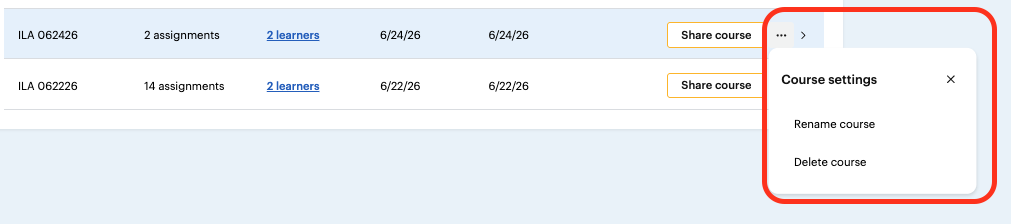
Select "Delete Course"